computer free courses MS Word , MS Excel , MS Access, InPage , Corel Draw , Windows Installation.

Showing posts with label MS Excel. Show all posts

Monday, July 2, 2018

IF Function in MS Excel

IF Function

The IF function is used to make decisions. It returns one value if a specified condition evaluates to TRUE and another value if it evaluates to FALSE. For example, you can display a massage “Pass” if marks are more than 40 or “Fail” otherwise. The syntax for the IF function is:
If(condition, value_if_ture, value_if_false)
Condition is the value to be tested.
IF Function in MS Excel


Value_if_true is the value that is returned if condition evaluates to TRUE.
Value_if _false is the value that is returned if condition evaluates top FALSE.
Insert marks of the student in A1.
Type IF(A1>40,”Pass”,”Fail”) in B1
Press ENTER
If the value of A1 is more than 40, “Pass” will be displayed in B1. Otherwise

“Fail” will be displayed


If my posts are useful for you، or if there is any reduction in them so kindly comment me.

Functions are used in MS Excel

Some commonly used Functions

There are most recently or commonly used functions are as followings.
Functions are used in MS Excel


Function Syntax                                             Purpose
=Sum(range)                                                   For addition of cells or values
=product(range)                                              For multiplication of cells / values
=average(range)                                              For average of cells or values
=max(range)                                                   For Maximum value of range
=min(range)                                                    For minimum value of range
=count(range)                                                 For counting of numeric values
=counta(range)                                               Count the numbers of cells that are not empty.
=countblank(range)                                        Count the empty cells in the range
=countif(range, criteria)                                 Count the number of cells within a range that meet the condition.
=today()                                                          Shows the today date
=now()                                                            Shows the current date with time
=days360(St_date,En_date)                           Return the number of days between two dates.
=day(date)                                                      Return the day from the date
=month(date)                                                 Return the month from the date
=power(value,power)                                    Calculate the result of number raised powers
=sumif(range, criteria,sum_range)                adds all numbers in a range of cells, based on a given criteria.

=If(condition,value_if_ture,value_if_false)  The IF function is used to make decisions.


If my posts are useful for you، or if there is any reduction in them so kindly comment me.

Sunday, July 1, 2018

Absolute Cell References in MS Excel

Absolute Cell References

Situations arise in which the cell reference must remain the same when copied or when
using AutoFill. Dollar signs are used to hold a column and/or row reference constant.
Absolute Cell References in MS Excel


Summary of absolute cell reference uses:

$A1
Allows the row reference to change,
but not the column reference.
A$1
Allows the column reference to
change, but not the row reference.
$A$1
Allows neither the column nor the row
reference to change.

Example:

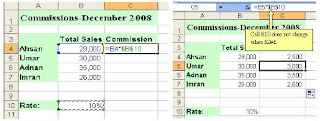
In the example below, when calculating commissions for sales staff, you would not want
cell B10 to change when copying the formula down. You want both the column and the
row to remain the same to refer to that exact cell. By using $B$10 in the formula, neither

changes when copied.


If my posts are useful for you، or if there is any reduction in them so kindly comment me.

Relative Cell References in MS Excel

Relative Cell References

This is the most widely used type of cell reference in formulas. Relative cell references are basic
cell references that adjust and change when copied or when using AutoFill.
Relative Cell References in MS Excel


Example:

=SUM(B5:B8), as shown below, changes to =SUM(C5:C8) when copied across to the

next cell.


If my posts are useful for you، or if there is any reduction in them so kindly comment me.
Saturday, June 30, 2018

Formula in MS Excel

Entering Formula in Worksheet

Formula Building

Excel allows you to use formulas to calculate and analyze data in your worksheet. A
formula always begins with an equal sign (=), and includes cell references, and some type
of mathematical operator. For example, the formula =C4+ C5 takes the value in C4 and
adds it to C5.
Formula in MS Excel
Formula in MS Excel


Operators in Formula

Excel uses arithmetic operators in formulas to perform mathematical calculations.
Arithmetic Operators include the addition (+), Subtraction (-) , Multiplication (*),
division (/), Percent (%), and exponent (^) symbols.
You can use Logical operators, which return values of TRUE or FALSE, in formulas to
compare two values.
Comparison and Logical Operators include the greater than (>), less than (<), equal to

(=), greater then or equal to (>=), less than or equal to (<=), and not equal


If my posts are useful for you، or if there is any reduction in them so kindly comment me.

Tuesday, June 26, 2018

Changing Page Size in MS Excel

Changing the Page Size

The default paper size is 8 1/2" x 11", but you can select other available paper sizes, such
as legal (8.5" x 14"). To select a different paper size:
Changing  Page Size in MS Excel
Changing  Page Size in MS Excel


From the Ribbon, select the Page Layout command tab

In the Page Setup group, click SIZE » select the desired paper size


If my posts are useful for you، or if there is any reduction in them so kindly comment me.

Page orientation in MS Excel

Changing Page Orientation

From the Ribbon, select the Page Layout command tab
In the Page Setup group, click ORIENTATION » select the

desired orientation (i.e., Portrait or Landscape)
Page direction in MS Excel


If my posts are useful for you، or if there is any reduction in them so kindly comment me.

Monday, June 25, 2018

Print cell range in MS Excel

Printing Ranges of Cells

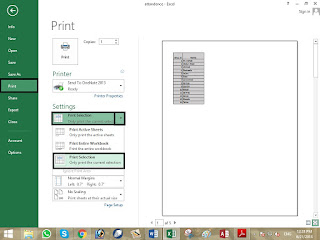
You can manually select ranges of cells for printing. You also have the option of selecting multiple non-contiguous ranges for printing.
Select the Cells you want to print.
Print cell range in MS Excel


click the OFFICE BUTTON» select Print
OR
Press [Ctrl] + [P]
The Print dialog box appears.
In the Print what section, select Print Selection
Click PRINT

  The specified range of cells is printed.


If my posts are useful for you، or if there is any reduction in them so kindly comment me.

Define the Print Area in MS Excel

Defining the Print Area

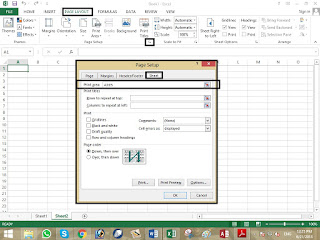
By default, Excel prints all data on the current worksheet. However, you can define a specific print area from the Page Setup dialog box or the Print Area command.
Define the Print Area in MS Excel


Select the Page Layout command tab In the Page Setup group, click Page Setup
The Page Setup dialog box appears.
Select the Sheet tab
In the Print Area text box, type the range of cells you want to print
OR
To select the area
Click COLLAPSE DIALOG
Select the desired range of cells
Click RESTORE DIALOG
Click OK

The print area is defined.


If my posts are useful for you، or if there is any reduction in them so kindly comment me.

Sunday, June 24, 2018

Printing the Active Worksheet or Entire Workbook in MS Excel

Printing the Active Worksheet or Entire Workbook

To activate the worksheet you want printed, click the tab of that worksheet
The worksheet is active.
Printing the Active Worksheet or Entire Workbook in MS Excel


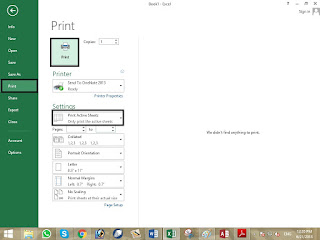
In the top left corner of the Excel window, click the OFFICE BUTTON» select Print
OR
Press [Ctrl] + [P]
The Print dialog box appears.
In the Print what section, select Active sheet(s). Print all the worksheets then
select Entire Workbook.
Click PRINT

The active worksheets are printed.


If my posts are useful for you، or if there is any reduction in them so kindly comment me.

Inserting Worksheets in MS Excel

Inserting Worksheets

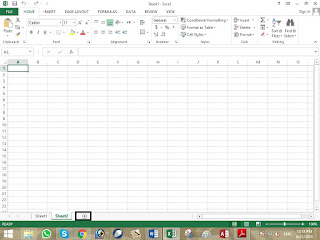
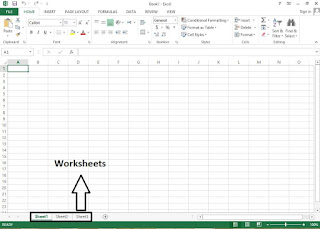
New Excel workbooks are created automatically with three worksheets. If you need

additional sheets, you can easily insert them.
Inserting Worksheets in MS Excel


If my posts are useful for you، or if there is any reduction in them so kindly comment me.

Saturday, June 23, 2018

Renaming Worksheet Tabs in MS Excel

Renaming Worksheet Tabs
The tabs on the bottom of the worksheets contain the name of each worksheet. You can change the default name of the worksheet to describe its contents.
Renaming Worksheet Tabs in MS Excel


To select the sheet name, double click the appropriate worksheet tab
OR
Right click the appropriate worksheet tab » select Rename
Type the new sheet name
Press [Enter]

The worksheet is renamed


If my posts are useful for you، or if there is any reduction in them so kindly comment me.

Find & Replace in MS Excel

Find & Replace

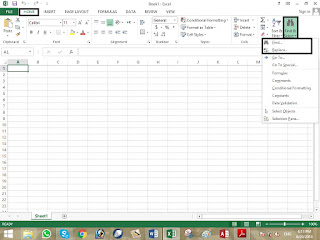
In the Home command tab within the Editing group click Find & Select command.
A list pull down click the Find or Replace command
Find and Replace dialog box appear. Type the word you want to find in find what box

Or type the word you want to replace in replace with box. Then click replace all.
Find & Replace in MS Excel


If my posts are useful for you، or if there is any reduction in them so kindly comment me.

Friday, June 22, 2018

Adding and Removing Rows and Columns

Adding and Removing Rows and Columns

When working with worksheets, you will often need to make changes to the original
worksheets, such as deleting old information or adding new information. To make this
task easier, you can add new rows and columns or delete existing rows and columns.
Adding and Removing Rows and Columns


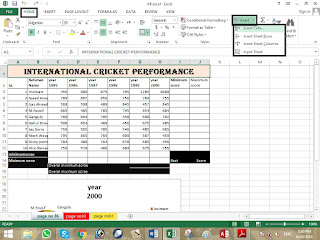
In the Home command tab within the Cell group click Insert

A list pull down click the insert row or column.


If my posts are useful for you، or if there is any reduction in them so kindly comment me.

Adjusting Row Height and Column Width

Adjusting Row Height and Column Width

When you start working on a worksheet, all columns are 8.43 characters wide (in default
font) and row heights are set to fit the content of the cell with a maximum of 15 points.
Excel may widen the column or increase the row height to fit the cell content.
Adjusting Row Height and Column Width

Adjusting Row Height and Column Width


Form the Home Command tab within the Cell group Click Format
A list pull down click the Row Height or Columns Width.
A box appear type the desired points that you want to adjust height or width.

Then click ok.


If my posts are useful for you، or if there is any reduction in them so kindly comment me.

Thursday, June 21, 2018

Filling cells in MS Excel

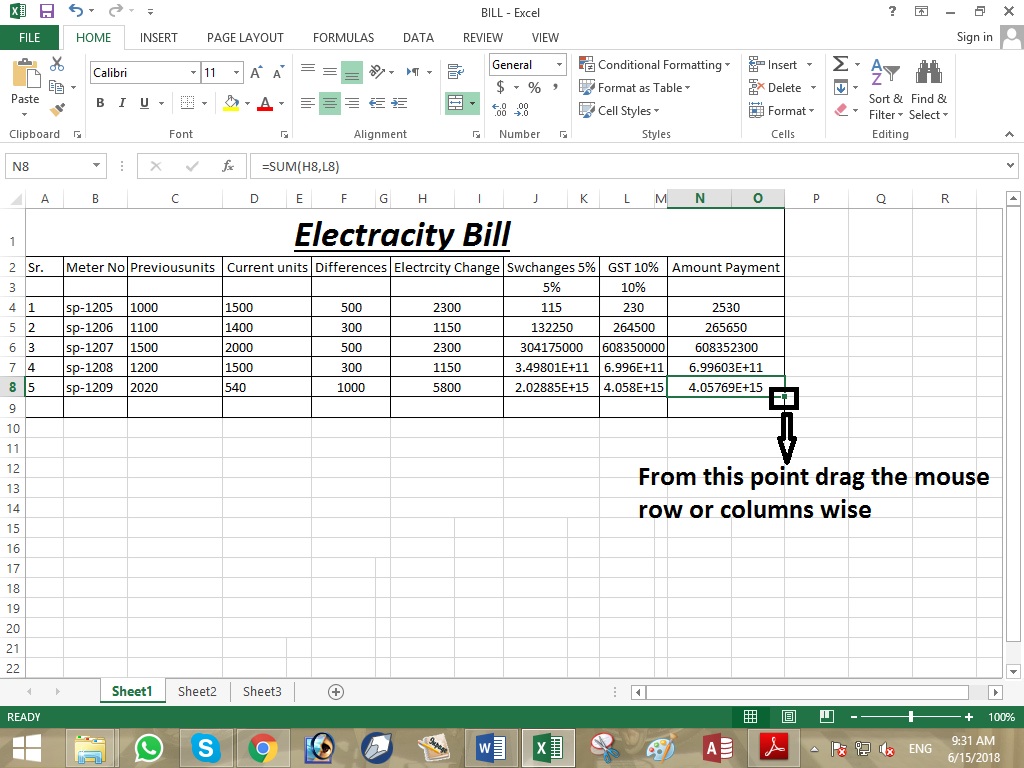
Filling Cells Mouse Option
Using this option will extend the data in the series to the selected cells.
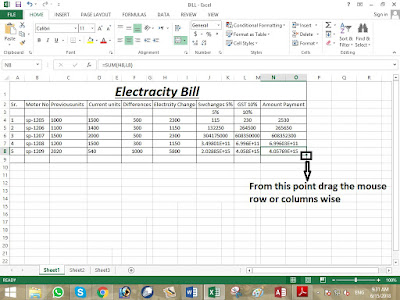
Type the information (cell contents or formula) in the first cell of the group
In this cell, move your pointer over the fill corner so your pointer changes into crosshairs
Click and hold the crosshairs
Filling cells in MS Excel


Drag the mouse in the direction you want the information
to be copied

Release the mouse button. The fill is applied


If my posts are useful for you، or if there is any reduction in them so kindly comment me.