computer free courses MS Word , MS Excel , MS Access, InPage , Corel Draw , Windows Installation.

Showing posts with label MS Excel. Show all posts

Monday, July 2, 2018

IF Function in MS Excel

IF Function

The IF function is used to make decisions. It returns one value if a specified condition evaluates to TRUE and another value if it evaluates to FALSE. For example, you can display a massage “Pass” if marks are more than 40 or “Fail” otherwise. The syntax for the IF function is:
If(condition, value_if_ture, value_if_false)
Condition is the value to be tested.
IF Function in MS Excel


Value_if_true is the value that is returned if condition evaluates to TRUE.
Value_if _false is the value that is returned if condition evaluates top FALSE.
Insert marks of the student in A1.
Type IF(A1>40,”Pass”,”Fail”) in B1
Press ENTER
If the value of A1 is more than 40, “Pass” will be displayed in B1. Otherwise

“Fail” will be displayed


If my posts are useful for you، or if there is any reduction in them so kindly comment me.

Functions are used in MS Excel

Some commonly used Functions

There are most recently or commonly used functions are as followings.
Functions are used in MS Excel


Function Syntax                                             Purpose
=Sum(range)                                                   For addition of cells or values
=product(range)                                              For multiplication of cells / values
=average(range)                                              For average of cells or values
=max(range)                                                   For Maximum value of range
=min(range)                                                    For minimum value of range
=count(range)                                                 For counting of numeric values
=counta(range)                                               Count the numbers of cells that are not empty.
=countblank(range)                                        Count the empty cells in the range
=countif(range, criteria)                                 Count the number of cells within a range that meet the condition.
=today()                                                          Shows the today date
=now()                                                            Shows the current date with time
=days360(St_date,En_date)                           Return the number of days between two dates.
=day(date)                                                      Return the day from the date
=month(date)                                                 Return the month from the date
=power(value,power)                                    Calculate the result of number raised powers
=sumif(range, criteria,sum_range)                adds all numbers in a range of cells, based on a given criteria.

=If(condition,value_if_ture,value_if_false)  The IF function is used to make decisions.


If my posts are useful for you، or if there is any reduction in them so kindly comment me.

Sunday, July 1, 2018

Absolute Cell References in MS Excel

Absolute Cell References

Situations arise in which the cell reference must remain the same when copied or when
using AutoFill. Dollar signs are used to hold a column and/or row reference constant.
Absolute Cell References in MS Excel


Summary of absolute cell reference uses:

$A1
Allows the row reference to change,
but not the column reference.
A$1
Allows the column reference to
change, but not the row reference.
$A$1
Allows neither the column nor the row
reference to change.

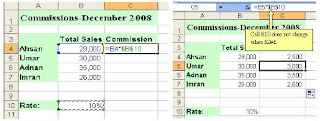
Example:

In the example below, when calculating commissions for sales staff, you would not want
cell B10 to change when copying the formula down. You want both the column and the
row to remain the same to refer to that exact cell. By using $B$10 in the formula, neither

changes when copied.


If my posts are useful for you، or if there is any reduction in them so kindly comment me.

Relative Cell References in MS Excel

Relative Cell References

This is the most widely used type of cell reference in formulas. Relative cell references are basic
cell references that adjust and change when copied or when using AutoFill.
Relative Cell References in MS Excel


Example:

=SUM(B5:B8), as shown below, changes to =SUM(C5:C8) when copied across to the

next cell.


If my posts are useful for you، or if there is any reduction in them so kindly comment me.
Saturday, June 30, 2018

Formula in MS Excel

Entering Formula in Worksheet

Formula Building

Excel allows you to use formulas to calculate and analyze data in your worksheet. A
formula always begins with an equal sign (=), and includes cell references, and some type
of mathematical operator. For example, the formula =C4+ C5 takes the value in C4 and
adds it to C5.
Formula in MS Excel
Formula in MS Excel


Operators in Formula

Excel uses arithmetic operators in formulas to perform mathematical calculations.
Arithmetic Operators include the addition (+), Subtraction (-) , Multiplication (*),
division (/), Percent (%), and exponent (^) symbols.
You can use Logical operators, which return values of TRUE or FALSE, in formulas to
compare two values.
Comparison and Logical Operators include the greater than (>), less than (<), equal to

(=), greater then or equal to (>=), less than or equal to (<=), and not equal


If my posts are useful for you، or if there is any reduction in them so kindly comment me.