computer free courses MS Word , MS Excel , MS Access, InPage , Corel Draw , Windows Installation.

Sunday, July 1, 2018

Paragraph Shading in MS Word

Adding Shading

Select the paragraph(s) to which you want to add shading
Paragraph Shading in MS Word


Open the Borders and Shading dialog box
Select the Shading tab
From the Fill pull-down list, select the desired fill effect

Click OK


If my posts are useful for you، or if there is any reduction in them so kindly comment me.

Paragraph Border in MS Word

Adding Borders
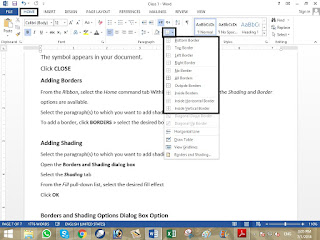
From the Ribbon, select the Home command tab Within the Paragraph section, the Shading and Border options are available.
Paragraph Border in MS Word


Select the paragraph(s) to which you want to add shading and/or border(s)

To add a border, click BORDERS » select the desired border option


If my posts are useful for you، or if there is any reduction in them so kindly comment me.
Absolute Cell References in MS Excel

Absolute Cell References

Situations arise in which the cell reference must remain the same when copied or when
using AutoFill. Dollar signs are used to hold a column and/or row reference constant.
Absolute Cell References in MS Excel


Summary of absolute cell reference uses:

$A1
Allows the row reference to change,
but not the column reference.
A$1
Allows the column reference to
change, but not the row reference.
$A$1
Allows neither the column nor the row
reference to change.

Example:

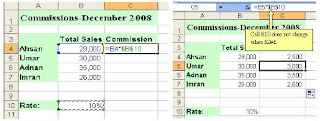
In the example below, when calculating commissions for sales staff, you would not want
cell B10 to change when copying the formula down. You want both the column and the
row to remain the same to refer to that exact cell. By using $B$10 in the formula, neither

changes when copied.


If my posts are useful for you، or if there is any reduction in them so kindly comment me.

Relative Cell References in MS Excel

Relative Cell References

This is the most widely used type of cell reference in formulas. Relative cell references are basic
cell references that adjust and change when copied or when using AutoFill.
Relative Cell References in MS Excel


Example:

=SUM(B5:B8), as shown below, changes to =SUM(C5:C8) when copied across to the

next cell.


If my posts are useful for you، or if there is any reduction in them so kindly comment me.